
Canon Imageprograf TM-200 Printer Driver for Mac (26, 15, 14, 13, 12, 11, 10.15, 10.14, 10.13, v10.12.1, v10.11, v10.10)
imagePROGRAF TM-200 series CUPS Printer Driver/imagePROGRAF TM-200 series Full Driver & Software Package for MAC
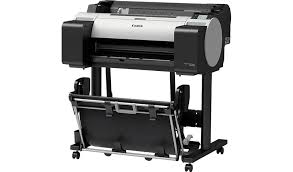
Canon imagePROGRAF TM-200 24-inch 5-Color Inkjet Printer Plotter has a maximum print resolution of 2400 x 1200 dpi. It uses USB 2.0 high speed interface.
Canon Imageprograf TM-200 Printer Driver for MAC
Operating Systems: macOS Tahoe 26, macOS Sequoia 15, macOS Sequoia 15, macOS 14 (Sonoma), macOS Ventura 13, Monterey 12, macOS Big Sur 11, macOS Catalina 10.15, macOS Mojave 10.14, macOS High Sierra 10.13, macOS Sierra v10.12.1 or later, OS X El Capitan v10.11, OS X Yosemite v10.10
| Driver Name | Version | Release date | File Size | Operating systems | Download Link |
| imagePROGRAF TM-200 series CUPS Printer Driver | 30.10.1.0 | 16 March 2026 | 18.0 MB | macOS 26, 15, 14, 13, 12, 11 | Download |
| imagePROGRAF TM-200 series Full Driver & Software Package | 1.3 | 01 August 2024 | 8.05 MB | macOS 13, 12, 11, 10.15, 10.14, 10.13, v10.12.1, v10.11, v10.10 | Download |
imagePROGRAF TM-200 series CUPS Printer Driver: This is a printer driver for your selected model.
Procedures for the download and installation
- Download the file. For the location where the file is saved, check the computer settings.
- Double-click the downloaded file and mount it on the Disk Image.
- Double-click the mounted Disk Image.
- Double-click the packaged file in the folder. Installation starts automatically.
imagePROGRAF TM-200 series Full Driver & Software Package: This file will download and install the drivers, application or manual you need to set up the full functionality of your product.
Download / Installation Procedures
- Download the file. For the location where the file is saved, check the computer settings.
- Double-click the downloaded file and mount it on the Disk Image.
- Double-click the mounted Disk Image.
- Double-click the “Setup” file to launch the setup screen. By following the instructions on the screen, install the software and do the connection settings for your product.