Canon PIXMA G3501 Driver MAC

Canon Pixma G3501 Printers Driver for Mac (15, 14, 13, 12, 11, 10.15, 10.14, 10.13, v10.12.1, OS X v10.11, OS X v10.10, OS X v10.9, OS X v10.8, OS X v10.7)

G3000 series Full Driver & Software Package- G3000 series CUPS Printer Driver (Mac)
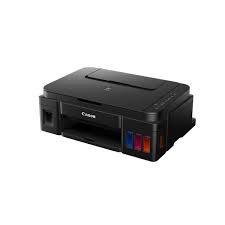
Canon Pixma G3501 Printer

Canon Pixma G3501 Ink Tank Wireless All-In-One Printer.

Canon PIXMA G3501 Printer Driver for Mac

Compatibility Systems: MacOS Sequoia 15, Sonoma 14, macOS Ventura 13, macOS Monterey 12, macOS Big Sur 11, macOS Catalina 10.15, macOS Mojave 10.14, macOS High Sierra 10.13, macOS Sierra v10.12.1 or later, OS X El Capitan v10.11, OS X Yosemite v10.10.5

Driver NameVersionRelease dateFile SizeOperating systemsDownload Link
ICA Driver5.0.026 Sep, 230.45 MBmacOS 14, 13, 12, 11Download
G3000 series CUPS Printer Driver16.91.0.010 Mar, 202615.45 MBmacOS 26, 15, 14, 13, 12, 11Download
MG3000 series Full Driver & Software Package1.608 Apr, 20257.77 MBmacOS 15, 14, 13, 12, 11, 10.15, 10.14, 10.13, v10.12.1, v10.11, v10.10Download
Canon PIXMA MG3501 Driver Description for MAC

G3000 series CUPS Printer Driver: This driver will provide full printing functionality for your product.

Procedures for the download and installation

  1. Download the file. For the location where the file is saved, check the computer settings.
  2. Double-click the downloaded file and mount it on the Disk Image.
  3. Double-click the mounted Disk Image.
  4. Double-click the packaged file in the folder. Installation starts automatically.

G3000 series Full Driver & Software Package: This file will download and install the drivers, application or manual you need to set up the full functionality of your product.

Installation
Note: Be sure to connect your PC to the Internet while performing the following:

  1. Download the file. For the location where the file is saved, check the computer settings.
  2. Double-click the downloaded .exe file. It will be decompressed and the Setup screen will be displayed. Follow the instructions to install the software and perform the necessary settings.
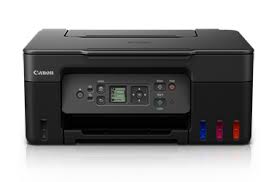
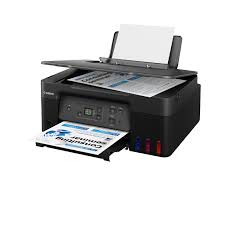
Canon PIXMA G3272 Printer Driver for Linux

Canon PIXMA G3272 Printer Driver Download for Linux 64bit

IJ Printer Driver rpm Packagearchive Fedora 37(64bit) and debian Packagearchive Ubuntu 22.10(64bit)

MegaTank PIXMA G3272 is a wireless all-in-one printer. This 3-in-1 printer helps you print, copy and scan easily. Especially, 11 (B&W) / 6 (COLOR) Images per minute (ipm) is very good in my opinion. It can print documents single-sided. I think it can be purchased for home and small offices.

Canon PIXMA G3272 IJ Printer Driver Download for Linux

rpm Packagearchive

This software is a printer driver for printing using the Canon IJ printer.

Version: 6.60
File Name: cnijfilter2-6.60-1-rpm.tar.gz
Release Date: 04.05.23
Size: 1.25 Mb

DOWNLOAD

Operating Systems: Fedora 37(64bit)

debian Packagearchive

This software is a printer driver for printing using the Canon IJ printer.

Version: 6.60
File Name: cnijfilter2-6.60-1-deb.tar.gz
Release Date: 04.05.23
Size: 1.16 Mb

DOWNLOAD

Compatible systems: Ubuntu 22.10(64bit)

Canon PIXMA G3272 Driver Download for Windows

Version: 1.02
File Name: md__-win-g3070-1_02-ea34_2.exe
Release Date: 12.08.23
Size: 90.52 MB

DOWNLOAD

Compatibility Systems: Windows 11, Windows 10 (32bit), 10 (64bit), Windows 8.1 (32bit), 8.1 (64bit), Windows 7 (32bit), 7 (64bit)

Canon Pixma G2970 Driver

Canon Pixma G2970 Printer Driver for Windows 11-10-8.1-8-7 (32bit-64bit)

G2000 series Full Driver & Software Package for Microsoft Windows

Canon Pixma G2970 Printer

The new Canon Pixma G2900 is an inkjet printer. It easily handles your copying and scanning jobs. You can control your inks with the Internal Ink Tank System. Ideal for sharp texts.

Canon Pixma G2970 Printer Driver for Windows

This is an online installation software to help you to perform initial setup of your product on a PC (either USB connection or network connection) and to install various software.

Version: 1.1
File name : win-g2000-1_1-n_mcd.exe
Release Date: 29 Mar, 2022

Download

Size: 50MB

Download / Installation Procedures
IMPORTANT: Be sure to connect your PC to the Internet while performing the following:

  1. Download the file. For the location where the file is saved, check the computer settings.
  2. Double-click the downloaded .exe file. It will be decompressed and the Setup screen will be displayed. Follow the instructions to install the software and perform the necessary settings.
Exit mobile version