

Download Canon Pixma IX6880 Printer Driver for Windows 11-108.1-8-7(32bit-64bit) and for MAC (15, 14, 13, 12, 11)
iX6800 series Full Driver and Software Package-X6800 series Printer Driver-iX6800 series XPS Printer Driver for Microsoft Windows and iX6800 series Full Driver & Software Package-iX6800 series CUPS Printer Driver for MAC
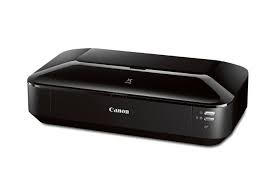
Canon PIXMA IX6880 Printer Driver for Windows
Compatibility Systems: Windows 11, Windows 10 (32bit), 10 (64bit), Windows 8.1 (32bit), 8.1 (64bit), Windows 8 (32bit), 8 (64bit), Windows 7 (32bit), 7 (64bit
| Driver Name | Version | Release date | File Size | Download Link |
| iX6800 series Full Driver & Software Package | 1.1 | Feb 28, 2022 | 52 MB | Download |
iX6800 series Full Driver & Software Package: This file will download and install the drivers, application or manual you need to set up the full functionality of your product.
Download / Installation Procedures
Be sure to connect your PC to the Internet while performing the following:
- Click the link, select [ Save ], specify “Save As”, then click [ Save ] to download the file.
- The downloaded file will be saved in the specified place in the self-extracting form (.exe format ).
- Double-click the downloaded .exe file. It will be decompressed and the Setup screen will be displayed. Follow the instructions to install the software and perform the necessary settings.
Canon PIXMA iX6880 Printer Software for MAC
Operating Systems: macOS Sequoia 15, MacOS Sonoma 14, macOS Ventura 13, macOS Monterey 12, macOS Big Sur 11, macOS Catalina 10.15, macOS Mojave 10.14, macOS High Sierra 10.13
| Driver Name | Version | Release date | File Size | Operating systems | Download Link |
| iX6800 series CUPS Printer Driver | 16.80.0.0 | 17 Mar, 2025 | 16.41MB | macOS 15, 14, 13, 12, 11 | Download |
iX6800 series CUPS Printer Driver: This is a printer driver for your selected model. For an enhanced user experience we also recommend installing My Image Garden software.
Download / Installation Procedures
1. Download the file. For the location where the file is saved, check the computer settings.
2. Double-click the downloaded file and mount it on the Disk Image.
3. Double-click the mounted Disk Image.
4. Double-click the package