Canon PIXMA G2160 Driver

Canon PIXMA G2160 Driver Download for Windows 11/10/8.1/7 (32bit-64bit)

G2060 series Driver setup package-G2020/G2060 series MP Driver for Microsoft Windows
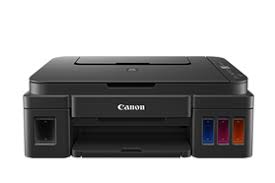
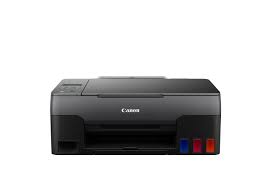
Canon Pixma G2160 Printer
Canon PIXMA G2160 Printers with Refill Built-In Ink Tanks

The Canon Pixma G2160 All-in-One printer can print, copy and scan at a low cost. With the refillable ink system, print up to 7,600 black / 7,700 color pages from a single set of ink bottles. Easily print documents and borderless photos on a variety of media types and sizes with hybrid inks for crisp blacks and vibrant colors.

Canon PIXMA G2160 Driver Download for Windows

Compatibility Systems: Windows 11, Windows 10 (32bit), 10 (64bit), Windows 8.1 (32bit), 8.1 (64bit), Windows 8 (32bit), 8 (64bit), Windows 7 (32bit), 7 (64bit(64bit)

Driver NameVersionRelease dateFile SizeDownload Link
G2060 series Driver setup package1.204/26/202220.38 MBDownload
G2020/G2060 series MP Driver1.0311-Dec-202484.50 MBDownload
Canon PIXMA G2160 Driver Description for Windows

G2060 series Driver setup package: This file will download and install the driver needed to set up and utilize your product. Once complete, you will be able to install software to enhance the product’s functionality.

Download / Installation Procedures

*** Be sure to connect your PC to the Internet while performing the following:

1. Download the file. For the location where the file is saved, check the computer settings.
2. Double-click the downloaded .exe file. It will be decompressed and the Setup screen will be displayed. Follow the instructions to install the software and perform the necessary settings.

G2020/G2060 series MP Driver: This driver will provide full printing and scanning functionality for your product.

Download / Installation Procedures

1. Download the file. For the location where the file is saved, check the computer settings.
2. Double-click the downloaded EXE file to decompress it, then installation will start automatically
Canon MAXIFY GX4060 Driver Download

Canon MAXIFY GX4060 Driver Download for Windows 11-10-8.1-7 (32bit)(64bit)

GX4000 series MP Driver for Microsoft Windows

Canon MAXIFY GX4060
Canon MAXIFY GX4060 All-in-One Supertank Printer

Canon MAXIFY GX4060 Driver Download for Windows

Compatibility Systems: Windows 11, Windows 10 (32bit), 10 (64bit), Windows 8.1 (32bit), 8.1 (64bit), Windows 7 (32bit), 7 (64bit)

Driver NameVersionRelease dateFile SizeDownload Link
GX4000 series MP Driver1.0115-Oct-202169.51 MBDownload
Canon MAXIFY GX4060 Driver Description for Windows

This driver will provide full printing and scanning functionality for your product.

SETUP

Download / Installation Procedures
1. Download the file. For the location where the file is saved, check the computer settings.
2. Double-click the downloaded EXE file to decompress it, then installation will start automatically.

Canon PIXMA G3460 Driver MAC

Canon PIXMA G3460 Driver for MAC OS X 10.15, 10.14, 10.13, v10.12

G3060 series Setup package for Macintosh

Canon PIXMA G3560 Driver MAC
Canon Printer PIXMA G3460 Printer

Canon PIXMA G3460 Driver for MAC

Compatible systems: macOS Sequoia 15, macOS Sonoma 14, macOS Ventura 13, macOS Monterey 12, macOS Big Sur 11, macOS Catalina 10.15, macOS Mojave 10.14, macOS High Sierra 10.13, macOS Sierra v10.12.6

Driver NameVersionRelease dateFile SizeOperating systemsDownload Link
G3060 series Setup package1.519-Feb-20257.64 MBmacOS 15, 14, 13, 12, 11 10.15, 10.14, 10.13, v10.12.6Download
Canon PIXMA G3460 Driver Description for MAC

This file will download and install the software needed to utilize your prodcut. Once complete, you will be able to install additional software to enhance the product’s functionality.

Download / Installation Procedures

  1. Download the file. For the location where the file is saved, check the computer settings.
  2. Double-click the downloaded file and mount it on the Disk Image.
  3. Double-click the mounted Disk Image.
  4. Double-click the “Setup” file to launch the setup screen. By following the instructions on the screen, install the software and do the connection settings for your product.