MG2500 series IJ Printer Driver (debian Packagearchive):
This software is a printer driver for printing using the Canon IJ printer.
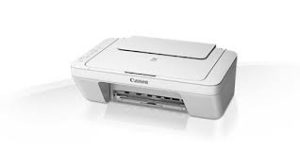
Canon PIXMA MG2550 Printer Driver for Windows
Compatibility Systems: Windows 11, Windows 10 (32bit), 10 (64bit), Windows 8.1 (32bit), 8.1 (64bit), Windows 8 (32bit), 8 (64bit), Windows 7 (32bit), 7 (64bit), Vista (32bit), Vista (64bit),XP, WinXP (64bit)
Canon i-Sensys MF655CDW Printer Software Driver Download for Microsoft Windows 11-10-8.1-7 (32bit-64bit)
Generic Plus UFR II Printer Driver-Generic Plus UFR II / Generic Plus PCL6 / Generic Plus PS3 / Generic FAX / ScanGear-Generic UFR II V4 Printer Driver -Generic FAX Driver
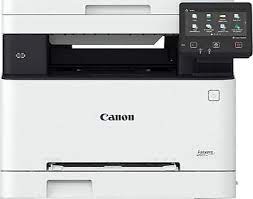
Canon i-Sensys MF655CDW Laser Printer
Canon i-SENSYS MF655CDW Color Laser All-in-One printer is developed for Print, Copy, Scan and Fax functions. It can take double-sided printing in both single A4 and A3 sizes. It has advanced print resolution of up to 1,200 x 1,200 dpi. Print from USB memory key with Secure Print (JPEG/TIFF/PDF) – Print from the cloud (Dropbox, GoogleDrive, OneDrive) (PDF/JPEG) – iOS; AirPrint, Canon PRINT Business app and Android; It is Mopria certified and has advanced printing features such as Canon Print Service plug-in, Canon PRINT Business app.
Canon i-SENSYS MF655CDW Driver Download for Windows
Compatibility Systems: Windows 11, Windows 10 (32bit), 10 (64bit), Windows 8.1 (32bit), 8.1 (64bit), Windows 7 (64bit)
Canon i-SENSYS MF655CDW Driver Description for Windows
Generic Plus UFR II Printer Driver: Precaution When Using a USB Connection Disconnect the USB cable that connects the device and computer before installing the driver. Connect the USB cable after installing the driver. Driver and application software files have been compressed. The following instructions show you how to download the compressed files and decompress them.
To download files, click the file link, select [Save], and specify the directory where you want to save the file. The download will start automatically.
Downloaded files are saved in the specified folder in a self-extracting format (.exe format).
Double-click the files to decompress them. A new folder will be created in the same folder. The new folder will have the same name as the compressed file.
Double-click the decompressed Setup.exe file to start installation.
Canon Pixma G4670 Driver for MAC OS 26, 15, 14, 13, 12, 11, 10.15, 10.14, 10.13, v10.12, v10.11, v10.10, v10.9, v10.8
G4000 series CUPS Printer Driver, ICA Driver for MACINTOSH
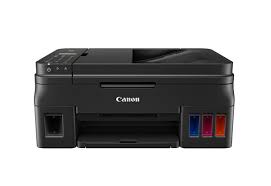
Canon Pixma G4670 Megatank Printer
Canon PIXMA G4670 Printer Driver for MAC
Operating Systems: macOS Tahoe 26, macOS Sequoia 15, macOS Sonoma 14, macOS Ventura 13, Monterey 12, macOS Big Sur 11, macOS Catalina 10.15, macOS Mojave 10.14, macOS High Sierra 10.13, macOS Sierra v10.12.1 or later, OS X El Capitan v10.11, OS X Yosemite v10.10, OS X Mavericks v10.9, OS X Mountain Lion v10.8.5, OS X Lion v10.7.5
G4000 series CUPS Printer Driver: This driver will provide full printing functionality for your product.
Installation
Download the file. For the location where the file is saved, check the computer settings.
Double-click the downloaded file and mount it on the Disk Image.
Double-click the mounted Disk Image.
Double-click the packaged file in the folder. Installation starts automatically.
G4000 series Full Driver & Software Package: This file will download and install the drivers, application or manual you need to set up the full functionality of your product.
Setup Instructions
Download / Installation Procedures 1. Download the file. For the location where the file is saved, check the computer settings. 2. Double-click the downloaded file and mount it on the Disk Image. 3. Double-click the mounted Disk Image. 4. Double-click the “Setup” file to launch the setup screen. By following the instructions on the screen, install the software and do the connection settings for your product.
ICA Driver: This driver will provide full scanning functionality for your product.
Setup
Download the file. For the location where the file is saved, check the computer settings.
Double-click the downloaded file and mount it on the Disk Image.
Double-click the mounted Disk Image.
Double-click the packaged file in the folder. Installation starts automatically.