Canon imagePRESS 1125 Printer Driver download for Windows 11, 10 32bit, 64bit
Generic Plus PCL6 Printer Driver

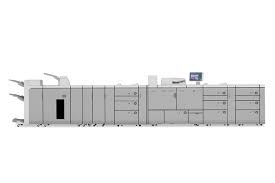
Canon imagePRESS 1125 Black and White Digital Presses
Version: V3.40
File name: PCL6_V4_PrinterDriver_V63_01.exe
Release date: 04 March 2026
Compatible Systems: Microsoft Windows11, Windows 10 (32-bit), Windows 10 (64-bit)
File size: 71.01 MB
Details
This is a package-aware driver.
Some limitations exist when using this driver in a point-and-print environment; please check the [Important Information] tab before using.*
The Canon-developed Generic Plus PCL6 Printer Driver is a common driver that supports multiple Canon devices.
It provides an optimal user interface for your device.
Precaution When Using a USB Connection
Disconnect the USB cable that connects the device and computer before installing the driver.
Connect the USB cable after installing the driver.
Driver and application software files have been compressed.
The following instructions show you how to download the compressed files and decompress them.
- To download files, click the file link, select [Save], and specify the directory where you want to save the file. The download will start automatically.
- Downloaded files are saved in the specified folder in a self-extracting format (.exe format).
- Double-click the files to decompress them. A new folder will be created in the same folder. The new folder will have the same name as the compressed file.
- Double-click the decompressed Setup.exe file to start installation.