Canon ImageCLASS MF275dw Driver

Canon ImageCLASS MF275dw Driver for Windows 11-10-8.1-7 (32bit-64bit)

MF275dw/ MF273dw/ MF272dw MFDrivers (Generic Plus UFR II / Generic FAX / ScanGear)-Generic FAX Driver-Generic Plus UFR II Printer Driver for Windows

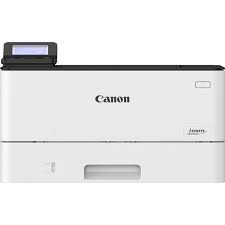
Canon ImageCLASS MF275dw Driver
Canon ImageCLASS MF275dw Printer

It can print up to 30 pages per minute with your first print out in approximately 5.3 seconds (letter). The Canon ImageCLASS MF275dw provides easy connection to mobile devices without the need for a computer, thanks to its WiFi direct connection. Canon PRINT Business, Apple AirPrint, Mopria Print Service. It consumes about 1.0 watt in sleep mode.

Canon ImageCLASS MF275dw Driver for Windows

Compatibility Systems: Windows 11, Windows 10 (32bit), 10 (64bit), Windows 8.1 (32bit), 8.1 (64bit),Windows 7 (32bit), 7 (64bit)

Driver NameVersionRelease dateFile SizeOperating systemsDownload Link
MF275dw/ MF273dw/ MF272dw MFDrivers (Generic Plus UFR II / Generic FAX / ScanGear)V7.7504.27.23155.09 MBWindows 11-10-10×64- 8.1-8.1×64-7-7×64Download
Generic FAX DriverV10.6010 Sep, 202432.2 MBWindows 11- Windows 10 (64bit)Download
Generic Plus UFR II Printer DriverV3.1025 September 202469.99 MBWindows 11-10×64Download
Canon ImageCLASS MF275dw Driver Description for Windows

Generic Plus UFR II Printer Driver – V2.73, Generic FAX Driver – V10.50 (MF275dw), ScanGear – V11.3

Precaution When Using a USB Connection

Disconnect the USB cable that connects the device and computer before installing the driver.

Connect the USB cable after installing the driver.
Drivers and applications are compressed.
Download the file.

*Note: When clicking [Run] on the file download screen (file is not saved to disk)

1. If the User Account Control prompt is displayed, click [Yes], and then click [Run] on the subsequent Security Alert screen.
2. The Setup Wizard will start.
3. After the Setup Wizard has started, follow the instructions on the screen to perform installation.

Generic Plus UFR II Printer Driver

This is a Canon-developed Generic Plus UFR II Printer Driver. This is a generic printer driver that supports various Canon devices. You can use the same driver for all printer models by changing the settings for the printing port and device information.

Precaution When Using a USB Connection

Disconnect the USB cable that connects the device and computer before installing the driver.
Connect the USB cable after installing the driver.
Driver and application software files have been compressed.

The following instructions show you how to download the compressed files and decompress them.

1. To download files, click the file link, select [Save], and specify the directory where you want to save the file. The download will start automatically.
2. Downloaded files are saved in the specified folder in a self-extracting format (.exe format).
3. Double-click the files to decompress them. A new folder will be created in the same folder. The new folder will have the same name as the compressed file.
4. Double-click the decompressed Setup.exe file to start installation.

Canon imageRUNNER C3326i Driver

Canon imageRUNNER C3326i Driver Download for Windows 11-10 (32bit-64bit)

Generic Plus PCL6 Printer Driver for Windows

Canon imageRUNNER C3326i MFP

The Canon imageRUNNER C3326i is Canon’s business multifunction printer and copier. This model is a device for offices and businesses that combines a variety of functionality and performance.

Canon imageRUNNER C3326i Driver for Windows

Driver NameVersionRelease dateFile SizeOperating systemsDownload Link
Generic Plus PCL6 Printer DriverV2.869 June, 202361.1 MBWindows 11 – Windows10-10×64Download
Canon imageRUNNER C3326i Driver Description for Windows

Generic Plus PCL6 Printer Driver

The Canon-developed Generic Plus PCL6 Printer Driver is a common driver that supports multiple Canon devices. It provides an optimal user interface for your device.

Download-Install

***Precaution When Using a USB Connection. Disconnect the USB cable that connects the device and computer before installing the driver. Connect the USB cable after installing the driver.

Driver and application software files have been compressed.
The following instructions show you how to download the compressed files and decompress them.

  • To download files, click the file link, select [Save], and specify the directory where you want to save the file. The download will start automatically.
  • Downloaded files are saved in the specified folder in a self-extracting format (.exe format).
  • Double-click the files to decompress them. A new folder will be created in the same folder. The new folder will have the same name as the compressed file.
  • Double-click the decompressed Setup.exe file to start installation.

Canon PIXMA TS3125 Driver Download

Canon PIXMA TS3125 Driver Download for Windows 11-10-8.1-7 (32bit-64bit)

TS3100 series Full Driver & Software Package-Pixma TS3100 series MP Drivers-TS3100 series XPS Printer Driver for Microsoft Windows

Canon PIXMA TS3125 Printer

Canon PIXMA TS3125 Printer Driver for Windows

Driver NameVersionRelease dateFile SizeOperating systemsDownload Link
TS3100 series Full Driver & Software Package1.39 December, 202221320 KBWindows 11-10 (32bit)-10 (64bit)- 8.1(32bit)-8.1 (64bit)-7(32bit)-7 (64bit)Download
TS3100 series MP Drivers1.022 Jun 202391750 KBWindows 11-10-10×64- 8.1-8.1×64-7-7×64Download
TS3100 series XPS Printer Driver6.1015 October, 202140 MBWindows 11-10 (32bit)-10 (64bit)- 8.1(32bit)-8.1 (64bit)-7(32bit)-7 (64bit)Download
Canon PIXMA TS3125 Driver Description for Windows

Pixma TS3100 series MP Drivers: This driver will provide full printing and scanning functionality for your product.

TS3100 series XPS Printer Driver: This is an optional printer driver allowing 16-bits per colour (bpc) printing. Download / Installation Procedures

TS3100 series Full Driver & Software Package: This file will download and install the drivers, application or manual you need to set up the full functionality of your product.

SETUP

Download – Installation Procedures

  1. Download the file. For the location where the file is saved, check the computer settings.
  2. Double-click the downloaded .exe file. It will be decompressed and the Setup screen will be displayed. Follow the instructions to install the software and perform the necessary settings.
Exit mobile version