Download Canon PIXMA TS205 Inkjet Printers Driver For Windows 11-10-8.1-7 32bit-64bit & Linux 32bit-64bit
TS200 series Full Driver & Software Package-TS200 series Printer Driver-TS200 series XPS Printer Driver for Microsoft Windows and IJ Printer Driver (rpm Packagearchive) for Linux
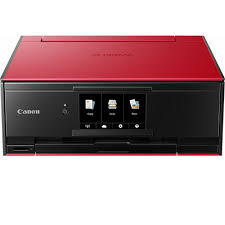
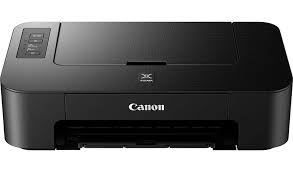
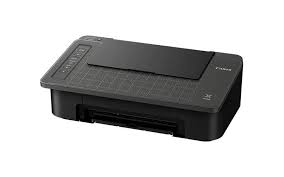
Canon PIXMA TS205 Printer
The ideal print for a very stylish, quiet and economically priced home environment. Print crisp text, vibrant photos and documents thanks to Canon‘s FINE technology and hybrid inks. Output a 10 x 15 cm (4 x 6”) borderless image in approximately 65 seconds. Thanks to the USB connection, the printer is quick and easy to set up.
Canon PIXMA TS205 Printer Driver for Windows
Compatibility Systems: Windows 11, Windows 10 (32bit), 10 (64bit), Windows 8.1 (32bit), 8.1 (64bit), Windows 8 (32bit), 8 (64bit), Windows 7 (32bit), 7 (64bit)
Driver Name
Version
Release date
File Size
Operating systems
Download Link
TS200 series Full Driver & Software Package
1.3
28-Nov-2024
20.12 MB
Windows 11 – Windows 10-10×64 – Windows 8.1-8.1×64 – Windows 7-7×64
TS200 series Full Driver & Software Package: This file will download and install the drivers, application or manual you need to set up the full functionality of your product.
Download / Installation Procedures * Be sure to connect your PC to the Internet while performing the following:
Download the file. For the location where the file is saved, check the computer settings.
Double-click the downloaded .exe file. It will be decompressed and the Setup screen will be displayed. Follow the instructions to install the software and perform the necessary settings.
PixmaTS200 series Printer Driver: This driver will provide full printing functionality for your product.
TS200 series XPS Printer Driver: This is an optional printer driver allowing 16-bits per colour (bpc) printing.
Download / Installation Procedures
Download the file. For the location where the file is saved, check the computer settings.
Double-click the downloaded EXE file to decompress it, then installation will start automatically
Canon PIXMA TS205 Printer Driver for Linux
Operating Systems: Linux 64bit – Linux 32bit-Fedora 25 (32bit/64bit)
Canon PIXMA TS304 Printer Driver Download for Windows 11, 10- 10×64- 8.1- 8.1×64- 7- 7×64
TS300 series Full Driver and Software Package & TS300 series XPS Printer Driver (Windows)
Canon PIXMA TS304 Ink-jet Colour Printer
This file will download and install the drivers, application or manual you need to set up the full functionality of your product.
Canon PIXMA TS304 Printer Driver for Windows
Compatibility Systems: Windows 11, Windows 10 (32bit), 10 (64bit), Windows 8.1 (32bit), 8.1 (64bit), Windows 8 (32bit), 8 (64bit), Windows 7 (32bit), 7 (64bit)
TS300 series Full Driver & Software Package: This file will download and install the drivers, application
Download / Installation Procedures
Download the file. For the location where the file is saved, check the computer settings.
Double-click the downloaded file and mount it on the Disk Image.
Double-click the mounted Disk Image.
Double-click the “Setup” file to launch the setup screen. By following the instructions on the screen, install the software and do the connection settings for your product.
Canon PIXMA TS304 Printer Driver Download for MAC
Operating Systems: macOS Catalina 10.15, macOS Mojave 10.14, macOS High Sierra 10.13, macOS Sierra v10.12, OS X El Capitan v10.11, OS X Yosemite v10.10.5