Canon PIXMA G1130 Driver Download

Canon PIXMA G1130 Driver Download for Windows 11-10-8.1-7 (32bit-64bit)

G1030 series Printer Driver for Microsoft Windows

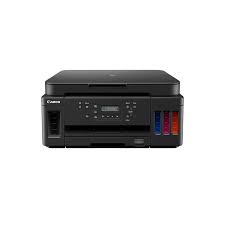
Canon PIXMA G1130 Printer

Canon PIXMA G1130 MegaTank Inkjet Printer. Designed for home and home offices, it offers compact, high-quality and cost-effective printing. Canon PIXMA G1130 is very easy to install, use and maintain. It offers excellent media versatility, especially for printing on a variety of media types and sizes, including photo paper, envelopes, banners and more. You can use it to create professional posters, banners and signs.

Canon PIXMA G1130 Driver Download for Windows

Compatibility Systems: Windows 11, Windows 10 (32bit), 10 (64bit), Windows 8.1 (32bit), 8.1 (64bit), Windows 7 (32bit), 7 (64bit)

Driver NameVersionRelease dateFile SizeDownload Link
G1030 series Printer Driver1.01Jun 10, 202333.75 MBDownload
Canon PIXMA G1130 Printer Driver Description for Windows

Details

G1030 series Printer Driver:

This driver will provide full printing and scanning functionality for your product.

Download / Installation Procedures

1. Download the file. For the location where the file is saved, check the computer settings.
2. Double-click the downloaded EXE file to decompress it, then installation will start automatically.

*A message may be displayed during the installation depending on the OS you are using, but continue the installation.

Canon PIXMA G4670 Driver Linux

Canon Pixma G4670 Driver for Linux (32bit-64bit)

ScanGear MP for Linux (debian Packagearchive) and IJ Printer Driver for Linux (debian Packagearchive)

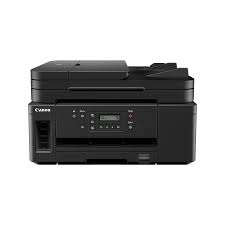
Canon Pixma G4670 Megatank Printer

The Canon PIXMA G4670 4-in-1 megatank printer is ideal for home and small offices. Connect to the Canon PRINT app or print without needing any additional apps, thanks to support for Apple AirPrint (iOS) or Mopria (Android). The device is covered by Canon Print Assist and includes easy step-by-step instructions to set up.

Canon PIXMA G4670 Printer Driver for Linux

Operating Systems: Ubuntu 16.04 (32bit/64bit)

Driver NameVersionFile SizeDownload Link
ScanGear MP for Linux (debian Packagearchive)3.40381040 KBDownload
IJ Printer Driver for Linux (debian Packagearchive)5.401113274 KBDownload
Canon PIXMA G4670 Printer Description for Linux

ScanGear MP for Linux (debian Packagearchive): This is a scanner driver for your selected model.

IJ Printer Driver for Linux (debian Packagearchive): This software is a printer driver for printing using the Canon IJ printer.

Canon PIXMA G4670 Driver MAC

Canon Pixma G4670 Driver for MAC OS 26, 15, 14, 13, 12, 11, 10.15, 10.14, 10.13, v10.12, v10.11, v10.10, v10.9, v10.8

G4000 series CUPS Printer Driver, ICA Driver for MACINTOSH

Canon G4670 Printer
Canon Pixma G4670 Megatank Printer

Canon PIXMA G4670 Printer Driver for MAC

Operating Systems: macOS Tahoe 26, macOS Sequoia 15, macOS Sonoma 14, macOS Ventura 13, Monterey 12, macOS Big Sur 11, macOS Catalina 10.15, macOS Mojave 10.14, macOS High Sierra 10.13, macOS Sierra v10.12.1 or later, OS X El Capitan v10.11, OS X Yosemite v10.10, OS X Mavericks v10.9, OS X Mountain Lion v10.8.5, OS X Lion v10.7.5

Driver NameVersionRelease dateFile SizeOperating systemsDownload Link
G4000 series CUPS Printer Driver30.10.1.010-Mar-202615.65 MBmacOS 26, 15, 14, 13, 12, 11Download
G4000 series Full Driver & Software Package1.31 Apr 202010.56 MBmacOS 10.15, macOS 10.14, 10.13, v10.12, v10.11, v10.10, v10.9, v10.8Download
ICA Driver4.3.4a29 Jul 20222578464 KBmacOS 10.15, 10.14, 10.13, v10.12, v10.11, v10.10, v10.9, v10.8.5Download
ICA Driver5.0.021 Oct 20223857061 KBmacOS 13, macOS 12, macOS 11Download
Canon PIXMA G4670 Driver Description for MAC

G4000 series CUPS Printer Driver: This driver will provide full printing functionality for your product.

Installation

  1. Download the file. For the location where the file is saved, check the computer settings.
  2. Double-click the downloaded file and mount it on the Disk Image.
  3. Double-click the mounted Disk Image.
  4. Double-click the packaged file in the folder. Installation starts automatically.

G4000 series Full Driver & Software Package: This file will download and install the drivers, application or manual you need to set up the full functionality of your product.

Setup Instructions

Download / Installation Procedures
1. Download the file. For the location where the file is saved, check the computer settings.
2. Double-click the downloaded file and mount it on the Disk Image.
3. Double-click the mounted Disk Image.
4. Double-click the “Setup” file to launch the setup screen. By following the instructions on the screen, install the software and do the connection settings for your product.

ICA Driver: This driver will provide full scanning functionality for your product.

Setup

  1. Download the file. For the location where the file is saved, check the computer settings.
  2. Double-click the downloaded file and mount it on the Disk Image.
  3. Double-click the mounted Disk Image.
  4. Double-click the packaged file in the folder. Installation starts automatically.