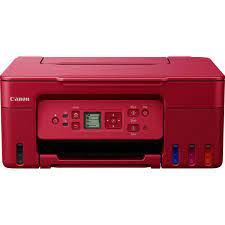
Canon PIXMA G3570 Driver Linux

Download Canon PIXMA G3570 Driver Linux (64bit)

IJ Printer Driver

Canon PIXMA G3570 Driver Linux
Canon PIXMA G3570

The Canon Pixma G3570 Wireless Colour 3-in-1 Refillable MegaTank Printer.

Canon PIXMA G3570 Driver Linux

Operating Systems: Linux (64-bit)

Driver NameVersionRelease dateFile SizeDownload Link

IJ Printer Driver for Linux (debian Packagearchive)
6.606 April, 20231.0 MBDownload
Canon PIXMA G3570 Driver Description for Linux

This software is a printer driver for printing using the Canon IJ printer.

Canon PIXMA G2270 Driver Linux

Canon PIXMA G2270 Printer Driver for Linux (64bit)

IJ Printer Driver for Fedora 37

Canon G2270 Driver Linux
Canon G2270

Specifications for printer Canon PIXMA G2270

  • Three-in-one (print, copy, scan)
  • Dye-Based Color Inks and Black Pigment Ink
  • 100-Sheet Rear Tray
  • Unidirectional Printing

Canon G2270 Driver for Linux

Driver NameVersionOperating systemsDownload Link
IJ Printer Driver6.60Fedora 37(64bit)Download
Canon PIXMA G2270 Driver Description Linux

IJ Printer Driver: This software is a printer driver for printing using the Canon IJ printer.

Canon PIXMA G2270 Printer Driver for Windows

Compatibility Systems: Windows 11, Windows 10 (32bit), 10 (64bit), Windows 8.1 (32bit), 8.1 (64bit), Windows 7 (32bit), 7 (64bit)
File Name: md__-win-g2070-1_00-ea34_2.exe

Download

Version: 1.00

Canon PIXMA G2270 Drivers Download

Canon PIXMA G2270 MegaTank All-in-One Inkjet Printer Driver for Windows 11-10-8.1-7 (32bit-64bit)

MG2070 series MP Drivers, MG2200 series XPS Printer Driver (Microsoft Windows)

Canon PIXMA G2270
Canon PIXMA G2270 Printer

Home and home offices can use the Canon PIXMA G2270 MegaTank All-in-One inkjet printer. It offers high-quality, reasonably priced prints in a small, fashionable package. Wireless connectivity is also provided. The PIXMA G2270 is simple to set up and maintain and can print on a range of media sizes and types, including picture paper, envelopes, banners, and more. You can print documents and images on many types of paper thanks to built-in Wi-Fi and mobile printing apps including AirPrint, Mopria, Canon Print, Pixma Cloud Link, and Easy PhotoPrint Editor App.

Canon PIXMA G2270 Printer MP Driver for Windows

This driver will provide full printing and scanning functionality for your product.

Compatibility Systems: Windows 11, Windows 10 (32bit), 10 (64bit), Windows 8.1 (32bit), 8.1 (64bit), Windows 7 (32bit), 7 (64bit)
Version: 1.02
File name : md__-win-g2070-1_02-ea34_2.exe
Release Date: 11-Dec-2024
Size: 87.25 MB

Download

Installation Procedures/ Download

1. Download the file. For the location where the file is saved, check the computer settings.
2. Double-click the downloaded EXE file to decompress it, then installation will start automatically.
*A message may be displayed during the installation depending on the OS you are using, but continue the installation.
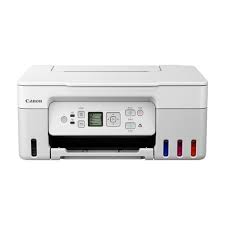
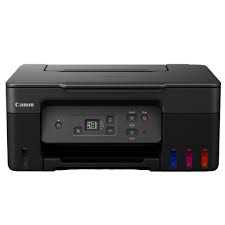
Canon PIXMA G2270 Printer XPS Driver for Windows

Version: 1.1
Released: 15-Oct-2021
Size: 26.25 MB

DOWNLOAD

Operating systems: Windows 10/10 x64/8.1/8.1 x64/8/8 x64/7/7 x64/Vista/Vista64/XP

This file is a driver for Canon IJ multifunction printers.
You can install the following items of the software:
MP Drivers: The driver for Canon IJ multifunction printer.
IJ Scan Utility: The software that allows you to easily scan photos, documents, etc.

Download / Installation Procedures

  1. Click the link, select [ Save ], specify “Save As”, then click [ Save ] to download the file.
    Memo :
    If you select [ Run ] ( or [ Open ] ) instead of [ Save ], the file will be automatically installed after it is saved.
  2. The downloaded file will be saved in the specified place in the self-extracting form ( .exe format ).
  3. Double-click the downloaded EXE file to decompress it, then installation will start automatically.

Uninstall Procedures
If needed, you can uninstall this program using the Control Panel.

Note :
The steps below are for Windows 7. This procedure may be different for other OSes.

  1. On the Start menu, click Control Panel, and then, under Programs click Uninstall a Program
  2. A page will open with a list of installed programs. Double click on the program that you want to uninstall.
  3. Click “Yes” then “OK”, this will complete the uninstallation process.