Canon PIXMA G3571 Driver Download

Canon PIXMA G3571 Wireless Colour 3-in-1 Refillable MegaTank Printer Driver for Windows 11-10-8.1-7 (32bit-64bit)

G3070 series MP Driver for Microsoft Windows
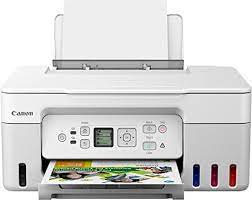
Canon PIXMA G3571 Printer
Canon PIXMA G3571 Printers

It offers both super-fast use and refillable ink. For residential users, the Pixma G3571 3-in-1 MegaTank printer is ideal. Documents and images can be printed, copied, and scanned with borderless printing. Connect quickly and easily to computers and smart devices.

Canon PIXMA G3571 Printer Driver for Windows

Operating Systems: Windows 11, Windows 10 (32bit), 10 (64bit), Windows 8.1 (32bit), 8.1 (64bit), Windows 7 (32bit), 7 (64bit)

Driver NameVersionRelease dateFile SizeDownload Link
G3070 series MP Driver1.0214 December, 202390.3 MBDownload
Canon PIXMA G3571 Driver Description for Windows

This driver will provide full printing and scanning functionality for your product.

Setup

Download / Installation Procedures

  1. Download the file. For the location where the file is saved, check the computer settings.
  2. Double-click the downloaded EXE file to decompress it, then installation will start automatically.
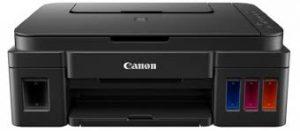
Canon Pixma G3800 Driver Download

Canon Pixma G3800 Ink Tank Printer Driver for Windows 11-10-8.1-8-7 (32bit-64bit)

Pixma G3000 series Full Driver and Software Package- G3000 series MP Drivers and G3000 series XPS Printer Driver for Microsoft Windows

Canon Pixma G3800 Driver

Canon Pixma G3800 Printer

Canon Pixma G3800 is an inkjet printer and is designed for home users.

Pixma G3800 All-in-One Printer Features are as follows: Print speed is determined as 8.8 ppm for black and 5.0 ppm for color printing. It also has a print resolution of up to 4800 × 1200 dpi.

This printer features high-speed USB connection technology as well as Wi-Fi technology. Thanks to Wi-Fi technology, you can easily print from your mobile and Android devices.

You can use A4, A5, B5, LTR=100, LGL=10 paper sizes in this printer. Additionally, the printer has sufficient input capacity thanks to its 100-sheet paper tray.

Recommended print volume is 6000 – 7000 pages.

Canon PIXMA G3800 Printer Driver for Windows

Operating Systems: Windows 11, Windows 10 (32bit), 10 (64bit), Windows 8.1 (32bit), 8.1 (64bit), Windows 8 (32bit), 8 (64bit), Windows 7 (32bit), 7 (64bit), Vista (32bit), Vista (64bit)

Driver NameVersionRelease dateFile SizeDownload Link
MG3000 series Full Driver & Software Package1.231 July, 202320.6 MBDownload
MG3000 series MP Drivers1.0425 July, 202368.2 MBDownload
MG3000 series XPS Printer Driver6.05c25 July, 202320.6 MBDownload
Canon PIXMA MG3800 Series Driver Description for Windows

Install

*Be sure to connect your PC to the Internet while performing the following:

  1. Download the file. For the location where the file is saved, check the computer settings.
  2. Double-click the downloaded .exe file. It will be decompressed and the Setup screen will be displayed. Follow the instructions to install the software and perform the necessary settings.

G3000 series MP Drivers: This driver will provide full printing and scanning functionality for your product.

G3000 series XPS Printer Driver: This is an optional printer driver allowing 16-bits per colour (bpc) printing.

Canon Pixma G5000 Driver for MAC

Download Canon Pixma G5000 Series Printer Driver for MacOS 10.15, 10.14, 10.13, v10.12.1, v10.11, v10.10

G5000 series Software Package for MAC

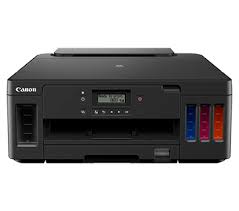
Canon Pixma G5000 Driver
Canon Pixma G5000 Printers

Canon Pixma G5000 Printer Driver for MAC

Driver NameVersionRelease dateFile SizeOperating systemsDownload Link
G5000 series Software Package1.019 Mar, 202010.6 MBmacOS 10.15, 10.14, 10.13, v10.12.1, v10.11, v10.10Download
Canon Pixma G5000 Description for MAC

This file will download and install all the software you need to utilise the full functionality of your product.

Download / Installation Procedures
1. Download the file. For the location where the file is saved, check the computer settings.
2. Double-click the downloaded file and mount it on the Disk Image.
3. Double-click the mounted Disk Image.
4. Double-click the “Setup” file to launch the setup screen. By following the instructions on the screen, install the software and do the connection settings for your product.

Canon Pixma G5000 Series Printer Driver for Windows

Compatibility Systems: Windows 11, Windows 10 (32bit), 10 (64bit), Windows 8.1 (32bit), 8.1 (64bit), Windows 7 (32bit), 7 (64bit)

Driver NameVersionRelease dateFile SizeDownload Link
G5000 series Full Driver & Software Package1.317 Nov, 202220.1 MBDownload
Canon Pixma G5000 Driver Description for Windows