Canon MF3010 Driver Windows 10

Download Canon imageCLASS MF3010 Laser Multifunction Printers Driver for Windows 11, 10, 8.1, 7 (64-bit)

imageCLASS MF3010/ MF3010 VP MFDriver (UFR II / ScanGear)
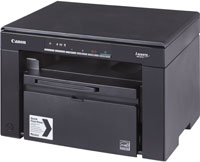
Canon i-SENSYS MF3010 Printer
Laser MFP Canon i-SENSYS MF3010

Print and copy speeds up to 19 ppm. One digit LED display for easy operation. Scan documents up to 8.5 x 11 (letter) sizes and auto convert to PDF’s Up to Letter

Canon imageCLASS MF3010 Printer Driver for Windows

Operating systems: Windows 11, Windows 10 (x64), Windows 8.1 (x64), Windows 8 (x64), Windows 7 (x64), Windows Vista (x64), Windows XP (x64)

Driver NameVersionRelease dateFile SizeDownload Link
imageCLASS MF3010/ MF3010 VP MFDrivers (UFR II / ScanGear)V3.90111 Nov, 202266.48 MBDownload
Canon imageCLASS MF3010 VP Driver Description for Windows

imageCLASS MF3010/ MF3010 VP MFDrivers (UFR II / ScanGear):

Driver Version : UFR II Printer Driver – V20.95, ScanGear – V11.3

*Precaution When Using a USB Connection
Disconnect the USB cable that connects the device and computer before installing the driver.
Connect the USB cable after installing the driver.
Drivers and applications are compressed.
Download the file.
* When clicking [Run] on the file download screen (file is not saved to disk)
1. If the User Account Control prompt is displayed, click [Yes], and then click [Run] on the subsequent Security Alert screen.
2. The Setup Wizard will start.
3. After the Setup Wizard has started, follow the instructions on the screen to perform installation.
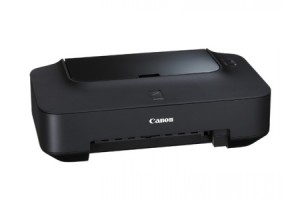
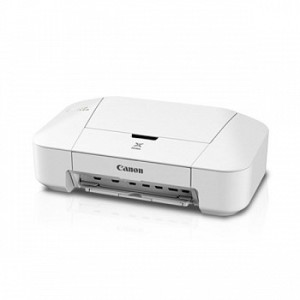
Canon Pixma iP2770 Driver Windows 10

Download Canon Pixma iP2770 Printer Driver for Windows 11/10/8.1/8/7 64bit-32bit

iP2700 series XPS Printer Driver and iP2700 series Printer Driver for Microsoft Windows

Canon Pixma iP2770 Printer

The stylish and compact PIXMA iP2770 is an affordable printer that you can use easily both at home and in small offices. It is ideal and fast for quality photo printing. Print speed in ISO Standards (A4): 7.0 ipm black / 4.8 ipm color. It has a high speed USB 2.0 connection. Recommended Print Volume is 30 – 100 pages.

Canon PIXMA iP2770 Printer Driver for Windows

Operating Systems: Windows 11, Windows 10 (32bit), 10 (64bit), Windows 8.1 (32bit), 8.1 (64bit), Windows 8 (32bit), 8 (64bit), Windows 7 (32bit), 7 (64bit)

File NameVersionReleasedSizeCompatibility systemsDownload Link
Pixma iP2700 series Printer Driver2.56cOctober 15, 202116.55MBWindows 11 – Windows10-10×64 – Windows 8.1-8.1×64 – Windows 8-8×64 – Windows 7-7×64Download
Pixma iP2770 CUPS Printer Driver16.40.1.027 Oct, 202115.36 MBMacOS X 12, 11, 10.15, 10.14, 10.13, v10.12.1, OS X v10.11, OS X v10.10, OS X v10.9, OS X v10.8.5, OS X v10.7.5Download
Canon PIXMA iP2770 Driver Description for Microsoft Windows

Download / Installation Procedures

  • Download the file. For the location where the file is saved, check the computer settings.
  • Double-click the downloaded file and mount it on the Disk Image.
  • Double-click the mounted Disk Image.
  • Double-click the packaged file in the folder. Installation starts automatically.

Canon Pixma iP2772 Driver Windows 10

Download Canon Pixma iP2772 Printer Driver for Microsoft Windows 11-10-8.1-8-7-Vista-XP (32bit)(64-bit)

Printer Driver and XPS Driver for Windows

Canon Pixma iP2772 Printer

Canon PIXMA iP2772 Printer Driver for Windows

Compatibility Systems: Windows 11, Windows 10 (32bit), 10 (64bit), Windows 8.1 (32bit), 8.1 (64bit), Windows 8 (32bit), 8 (64bit), Windows 7 (32bit), 7 (64bit), Vista (32bit), Vista (64bit),XP, WinXP (64bit)

Driver NameVersionPost dateFile SizeOperating systemsDownload Link
iP2772series Printer Driver2.56c15-October 202116.6MBWindows 11 – Windows10-10×64 – Windows 8.1-8.1×64 – Windows 8-8×64 – Windows 7-7×64 – Vista- Vistax64- XPDownload
iP2772 series XPS Printer Driver5.56a15 October, 202122.9 MBWindows 11 -10×64 – 8.1-8.1×64 – 8-8×64 -7-7×64 – Vista- Vistax64Download
Canon PIXMA iP2772 Driver Description for Microsoft Windows

Canon PIXMA iP2772 Printer Mac Driver Download

Setup

Installation Procedures
1. Download the file. For the location where the file is saved, check the computer settings.
2. Double-click the downloaded file and mount it on the Disk Image.
3. Double-click the mounted Disk Image.
4. Double-click the packaged file in the folder. Installation starts automatically.