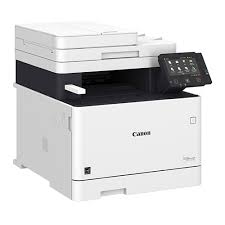
Canon imageCLASS MF735CdwDriver Description for Windows
Driver Version : Generic Plus UFR II Printer Driver – V1.10, Generic Plus PCL6 Printer Driver – V1.40, Generic Plus PS3 Printer Driver – V1.10, Generic FAX Driver – V10.30, ScanGear – V11.3
***Precaution When Using a USB Connection
Disconnect the USB cable that connects the device and computer before installing the driver. Connect the USB cable after installing the driver. Drivers and applications are compressed. Download the file.
Note: When clicking [Run] on the file download screen (file is not saved to disk)
1. If the User Account Control prompt is displayed, click [Yes], and then click [Run] on the subsequent Security Alert screen.
2. The Setup Wizard will start. 3. After the Setup Wizard has started, follow the instructions on the screen to perform installation.
Download Canon imageCLASS MF267dw Driver for Windows 11-10-8.1-7 (32bit-64bit)
Generic Plus PCL6 Printer Driver (Windows)
Canon imageCLASS MF267dw Printer
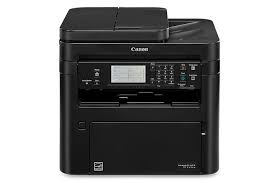
Canon imageCLASS MF267dw is a multifunctional laser printer model from Canon. This printer combines functions such as print, copy, scan and fax to meet the needs of small and medium businesses and home offices. Functionally, the Canon imageCLASS MF267dw offers black and white print speeds of up to 30 ppm. With its high print resolution (600 x 600 dpi), it can produce clear and sharp text and graphics. It also features double-sided (duplex) printing, which increases productivity while reducing paper consumption.
Canon imageCLASS MF267dw Driver for Windows
Compatibility Systems: Windows 11, Windows 10 (32bit), 10 (64bit), Windows 8.1 (32bit), 8.1 (64bit), Windows 7 (32bit), 7 (64bit)
Canon imageCLASS MF267dw Driver Description for Windows
Precaution When Using a USB Connection. Disconnect the USB cable that connects the device and computer before installing the driver. Connect the USB cable after installing the driver.
Driver and application software files have been compressed. The following instructions show you how to download the compressed files and decompress them.
To download files, click the file link, select [Save], and specify the directory where you want to save the file. The download will start automatically.
Downloaded files are saved in the specified folder in a self-extracting format (.exe format).
Double-click the files to decompress them. A new folder will be created in the same folder. The new folder will have the same name as the compressed file.
Double-click the decompressed Setup.exe file to start installation.