Canon imageCLASS D 520 Driver

Download Canon imageCLASS D520 Laser Multifunction Printers Driver for Windows 11,8.1×64,8×64,7×64

Canon imageCLASS D520 MF Drivers (UFR II / ScanGear)

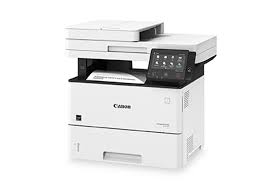
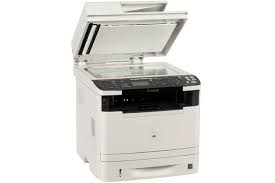
Canon imageCLASS D520 Printer

It handles two-sided copying, scanning, printing and PC faxing with ease. It also has color scanning feature. It can copy and write up to 26 pages per minute.

Canon imageCLASS D520 Driver for Windows

Version : V20.31
Relase Date: 7 December, 2021
File name : D520MFDriversV2031W64ukEN.exe
Operating Systems: Windows 11, Windows 10 (64-Bit), Windows 8.1 (64-Bit), Windows 8 (64-Bit), Windows 7 (64-Bit)
Download
Size : 16.54 MB

Canon imageCLASS MF5850dn Driver for Windows (64bit)

Version: V20.15
File : MF5850dnMFDriversV2015W64usEN.exe
Language: English
Relased: Feb 13, 2017
Operating Systems: Windows 10×64 Windows 8.1×64 Windows 8×64
Download
Size: 29.41 MB

Canon imageCLASS MF743 Cdw Driver

Canon Color imageCLASS MF743 Cdw Driver for Windows 11-10-8.1-7 (64-Bit)

MF743Cdw/MF741Cdw MFDrivers (Generic Plus UFR II / Generic FAX / ScanGear) Driver for Windows

Canon imageCLASS MF743Cdw Driver
Canon Color imageCLASS MF743Cdw Printer

Canon Color imageCLASS MF743Cdw – All in One, Wireless, Mobile Ready, Duplex Laser Printer. Scan and convert documents to searchable digital files through a one-pass scan and duplex document feeder. Designed for small print jobs with first-print time as fast as 10 seconds.

Canon imageCLASS MF743Cdw Driver for Windows

Compatibility Systems: Windows 11, Windows 10 (64-bit), Windows 8.1 (64-bit), Windows 7 (64-bit)

MF743Cdw/MF741Cdw MFDrivers (Generic Plus UFR II / Generic FAX / ScanGear)V6.404March 24, 2022179 MBDownload
Canon imageCLASS MF743Cdw Driver Description for Windows

MF743Cdw/MF741Cdw MFDrivers (Generic Plus UFR II / Generic FAX / ScanGear): Generic Plus UFR II Printer Driver – V2.00, Generic FAX Driver – V10.30 (MF743Cdw), ScanGear – V11.3

Setup

1. If the User Account Control prompt is displayed, click [Yes], and then click [Run] on the subsequent Security Alert screen.
2. The Setup Wizard will start.
3. After the Setup Wizard has started, follow the instructions on the screen to perform installation.

Canon imageCLASS MF743Cdw Driver for MAC

Operating Systems: MacOS Sonoma 14, macOS Ventura 13, macOS Monterey 12, macOS Big Sur 11, macOS Catalina 10.15, macOS Mojave 10.14, macOS High Sierra 10.13

Driver NameVersionRelease dateFile SizeDownload Link
Scanner Driver & UtilitiesV2.15.1412.07.2389 MBDownload
Canon Color imageCLASS MF743Cdw Driver Description for MAC

Canon LBP 6030 Printer Driver

Canon imageCLASS LBP6030 Laser Printer Driver Download for Windows 10, 8.1, 8, 7 (32-Bit)(64-Bit)

LBP6030w/LBP6030B/LBP6030 UFRII LT Printer Driver

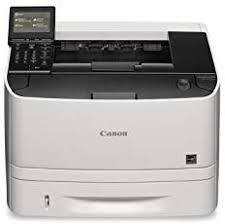
The image CLASS LBP6030 is a wireless, black and white laser printer that is a great fit for personal printing as well as small office and home office printing. The LBP 6030w is easy to use and has a space-saving compact design that will fit right on a desktop.

Canon imageCLASS LBP6030 Driver for Windows

Version: V21.13
File Name: LBP6030_XPS_V190_Win_us_EN.exe
Released: J17 March 2025

Operation Systems: Windows 10 32 Bit, Windows 10 64-Bit, Windows 8.1 32 Bit, Windows 8.1 64 Bit, Windows 8 32 Bit, Windows 8 64 Bit, Windows 7 32 Bit, Windows 7 64 Bit

Download

File Size: 29.21 MB

SETUP

Precaution When Using a USB Connection
Disconnect the USB cable that connects the device and computer before installing the driver.
Connect the USB cable after installing the driver.

Driver and application software files have been compressed.
The following instructions show you how to download the compressed files and decompress them.

  1. To download files, click the file link, select [Save], and specify the directory where you want to save the file. The download will start automatically.
  2. Downloaded files are saved in the specified folder in a self-extracting format (.exe format).
  3. Double-click the files to decompress them. A new folder will be created in the same folder. The new folder will have the same name as the compressed file.
  4. Double-click the [Setup.exe] in the [BootUp] folder.
Exit mobile version