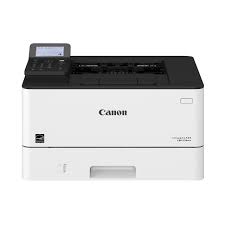
Canon imageCLASS MF451dw Printer Driver Download

Download Canon imageCLASS MF451dw Printer Driver for Windows 11-10-8.1-7 (32bit-64bit) and MAC (13, 12, 11, 10.15, 10.14, 10.13, v10.12.6)

MF455dw MFDrivers -Generic Plus PS3 Printer Driver-Generic Plus PCL6 Printer Driver for Microsoft Windows and UFR II/UFRII LT Printer Driver & Utilities for MAC

Canon imageCLASS MF451dw

Designed for small and medium businesses, the Canon imageCLASS MF450 Series models have fast performance and require minimal maintenance.

Canon imageCLASS MF451dw Printer Driver for Windows

Compatibility Systems: Windows 11, Windows 10 (64bit)

Driver NameVersionRelease dateFile SizeOperating systemsDownload Link
MF455dw MFDrivers V7.2026 Apr, 2022271.65 MBWindows 11-10-10×64Download
Generic Plus PCL6 Printer DriverV3.0009/13/202435.2 MBWindows 11-10-10×64-8.1-8.1×64Download
Canon imageCLASS MF451dw Driver Description for Windows

MF455dw MFDrivers (Generic Plus UFR II / Generic Plus PCL6 / Generic Plus PS3 / Generic FAX / ScanGear): Generic Plus UFR II Printer Driver – V2.40, Generic Plus PCL6 Printer Driver – V2.40, Generic Plus PS3 Printer Driver – V2.40, Generic FAX Driver – V10.45, ScanGear – V11.3 *Precaution When Using a USB Connection
Disconnect the USB cable that connects the device and computer before installing the driver. Connect the USB cable after installing the driver. Drivers and applications are compressed. Download the file. * When clicking [Run] on the file download screen (file is not saved to disk)

  1. If the User Account Control prompt is displayed, click [Yes], and then click [Run] on the subsequent Security Alert screen.
  2. The Setup Wizard will start.
  3. After the Setup Wizard has started, follow the instructions on the screen to perform installation

Generic Plus PCL6 Printer Driver: The Canon-developed Generic Plus PCL6 Printer Driver is a common driver that supports multiple Canon devices. It provides an optimal user interface for your device.

This is the Generic UFR II V4 Printer Driver. Access the various printing functions of Canon devices from the print settings screen of this driver. To use the Canon specific print settings of this driver with apps, you should also install the Canon Office Printer Utility which is available from the Windows Store. Information about how to install and use this driver, as well as the details of each function, can be found in the e-manual, which is available here: canon.com/oip-manual

Precaution When Using a USB Connection
Disconnect the USB cable that connects the device and computer before installing the driver.
Connect the USB cable after installing the driver.

Driver and application software files have been compressed.
The following instructions show you how to download the compressed files and decompress them.

1. To download files, click the file link, select [Save], and specify the directory where you want to save the file. The download will start automatically.
2. Downloaded files are saved in the specified folder in a self-extracting format (.exe format).
3. Double-click the files to decompress them. A new folder will be created in the same folder. The new folder will have the same name as the compressed file.
4. Double-click the decompressed Setup.exe file to start installation.

Canon imageCLASS MF451dw Printer Driver for MAC

Operating Systems: macOS 13, Monterey 12, macOS Big Sur 11, macOS Catalina 10.15, macOS Mojave 10.14, macOS High Sierra 10.13, macOS Sierra v10.12

Driver NameVersionRelease dateCompatible SystemsFile SizeDownload Link
UFR II/UFRII LT Printer Driver & Utilities10.15.709-Jan-2026MacOS 26, 15, 14, 13, 12, 11, 10.15, 10.14, 10.13, 10.1276.17 MBDownload
PS Printer Driver & UtilitiesV4.17.1807.09.24MacOS 13, 12, 11, 10.15, 10.1468.7 MBDownload
MF242dw Scanner Driver & UtilitiesV2.15.1110.12.22MacOS 26, 15, 14, 13, 12, 11, 10.15, 10.14, 10.13, 10.1287.38 MBDownload
Canon imageCLASS MF451dw Driver Description for MAC

UFR II/UFRII LT Printer Driver & Utilities: The following instructions show you how to download the compressed files and decompress them.

1. Click the link. The download will start automatically.
2. Files are saved on your computer desktop.
3. Double-click the file to mount the Disk Image.
4. Double-click the mounted Disk Image.
5. Double-click the Installer file in the folder. Installation starts automatically.

Canon imageCLASS MF242dw Printer Driver Download

Download Canon imageCLASS MF242dw Printer Driver for Windows 11-10-8.1-7 (32bit-64bit) and Driver for MAC (13-11-v10.15-v10.14-v10.13-v10.12)

MF242dw MFDrivers (UFR II / ScanGear)-UFRII LT Printer Driver for Microsoft Windows – MF Printer Driver & Utilities for Mac and Scanner Driver & Utilities for Mac

Canon imageCLASS MF242dw Printer

Designed for small and home offices, the Canon imageCLASS MF242dw has fast performance and requires minimal maintenance. Printing, copying and scanning helps you perform tasks with one machine, and the 5-line LCD panel provides an intuitive user experience. WiFi Direct Connect provides easy connection to mobile devices without a router. It also delivered up to 28 pages per minute.

Canon imageCLASS MF242dw Printer Driver for Windows

Driver NameVersionRelease dateFile SizeOperating systemsDownload Link
UFRII LT Printer DriverV30.8606.20.2218.12 MBWindows 11-10 (32bit)-8.1-7Download
MF242dw MFDrivers (UFR II / ScanGear)V7.10Nov 26, 202169.73 MBWindows 11-10 (64bit)-8.1×64 -8.1-7×64-7 (32bit)Download
UFRII LT Printer DriverV30.86Jun 20, 202220.37 MBWindows 11-10×64Download
Canon imageCLASS MF242dw Driver Description for Windows

UFRII LT Printer Driver – V30.40, ScanGear – V11.3: Precaution When Using a USB Connection. Disconnect the USB cable that connects the device and computer before installing the driver. Connect the USB cable after installing the driver. Drivers and applications are compressed. Download the file.

  • When clicking [Run] on the file download screen (file is not saved to disk)

1. If the User Account Control prompt is displayed, click [Yes], and then click [Run] on the subsequent Security Alert screen.
2. The Setup Wizard will start.
3. After the Setup Wizard has started, follow the instructions on the screen to perform installation.

UFRII LT Printer Driver: Precaution When Using a USB Connection

Disconnect the USB cable that connects the device and computer before installing the driver. Connect the USB cable after installing the driver. Driver and application software files have been compressed. The following instructions show you how to download the compressed files and decompress them.

  • To download files, click the file link, select [Save], and specify the directory where you want to save the file. The download will start automatically.
  • Downloaded files are saved in the specified folder in a self-extracting format (.exe format).
  • Double-click the files to decompress them. A new folder will be created in the same folder. The new folder will have the same name as the compressed file.
  • Double-click the decompressed Setup.exe file to start installation.

Canon imageCLASS MF242dw Printer Driver for MAC

Driver NameVersionRelease dateFile SizeOperating systemsDownload Link
MF Printer Driver & UtilitiesV10.11.9Oct 12, 202236.73 MBmacOS 10.12.6 – macOS 13-11-v10.15-v10.14-v10.13-v10.12Download
Scanner Driver & UtilitiesV2.15.1110.12.2287.38 MBMacOS 13-11-v10.15-v10.14-v10.13-10.12.6Download
Canon imageCLASS MF242dw Driver Description for MAC

MF Printer Driver & Utilities for Mac: The following instructions show you how to download the compressed files and decompress them.

1. Click the link. The download will start automatically.
2. Files are saved on your computer desktop.
3. Double-click the file to mount the Disk Image.
4. Double-click the mounted Disk Image.
5. Double-click the Installer file in the folder. Installation starts automatically.

Canon imageCLASS MF4820d Printer Driver for Windows

Canon imageCLASS MF4820d Printer Driver for Windows 11-10-8.1-7 (64bit)

imageCLASS MF4820d MFDrivers (UFR II / ScanGear) for Windows

Canon imageCLASS MF4820d

Canon imageCLASS MF4820d Printer Driver for Windows

Compatibility Systems: Windows 11, Windows 10 (64bit), Windows 8.1 (64bit), Windows 7 (64bit)

Driver NameVersionRelease dateFile SizeDownload Link
imageCLASS MF4820d MFDrivers (UFR II / ScanGear)V4.10125-Nov 2021
110.9MB
Download
MF743Cdw/MF741Cdw MF Drivers (Generic Plus UFR II / Generic FAX / ScanGear)V6.404Mar 24, 2022179.1 MBDownload
Canon imageCLASS MF4820d Driver Description for Windows

Driver Version : UFR II Printer Driver – V20.90, ScanGear – V11.3

—Precaution When Using a USB Connection
Disconnect the USB cable that connects the device and computer before installing the driver.
Connect the USB cable after installing the driver.

Drivers and applications are compressed.
Click on the file link.

  • When clicking [Run] on the file download screen (file is not saved to disk)
  1. If the User Account Control prompt is displayed, click [Yes], and then click [Run] on the subsequent Security Alert screen.
  2. The Setup Wizard will start.
  3. After the Setup Wizard has started, follow the instructions on the screen to perform installation.
  • When clicking [Save] on the file download screen (file is saved to disk at specified location)
  1. Save the file to an apporopriate location, and then double-click the file (double-clicking the file will create a new folder in the same location).
  2. If the User Account Control prompt is displayed, click [Yes].
  3. The Setup Wizard will start.
  4. After the Setup Wizard has started, follow the instructions on the screen to perform installation.
Exit mobile version