Canon ImageCLASS MF273dw Driver

Download Canon ImageCLASS MF273dw Driver for Windows 11-10-8.1-7 (32bit/64bit)

MF275dw/ MF273dw/ MF272dw MFDrivers (Generic Plus UFR II / Generic FAX / ScanGear)-Generic FAX Driver-Generic Plus UFR II Printer Driver for Windows
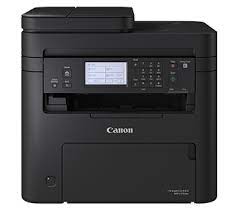
Canon ImageCLASS MF273dw Driver
Canon ImageCLASS MF273dw Printer

Canon ImageCLASS MF273dw Driver for Windows

Driver NameVersionRelease dateFile SizeOperating systemsDownload Link
MF275dw/ MF273dw/ MF272dw MFDrivers (Generic Plus UFR II / Generic FAX / ScanGear)V7.7504.27.23155.09 MBWindows 11-10-10×64- 8.1-8.1×64-7-7×64Download
Generic Plus UFR II Printer DriverV2.9008.02.2336.5 MBWindows 11-10×64Download
Canon ImageCLASS MF273dw Driver Description for Windows

Generic Plus UFR II Printer Driver – V2.73, Generic FAX Driver – V10.50 (MF275dw), ScanGear – V11.3

Generic Plus UFR II Printer Driver

This is a Canon-developed Generic Plus UFR II Printer Driver. This is a generic printer driver that supports various Canon devices. You can use the same driver for all printer models by changing the settings for the printing port and device information.

*Precaution When Using a USB Connection

Disconnect the USB cable that connects the device and computer before installing the driver.
Connect the USB cable after installing the driver.
Driver and application software files have been compressed.

The following instructions show you how to download the compressed files and decompress them.

1. To download files, click the file link, select [Save], and specify the directory where you want to save the file. The download will start automatically.
2. Downloaded files are saved in the specified folder in a self-extracting format (.exe format).
3. Double-click the files to decompress them. A new folder will be created in the same folder. The new folder will have the same name as the compressed file.
4. Double-click the decompressed Setup.exe file to start installation.
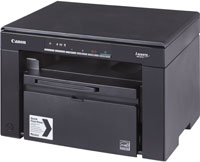
Canon imageCLASS MF3010 VP Driver

Download Canon imageCLASS MF3010 VP Driver for Windows 11, 10, 8.1, 7 64Bit

imageCLASS MF3010/ MF3010 VP MFDrivers (UFR II / ScanGear)-UFR II/UFRII LT V4 Printer Driver for Microsoft Windows

Canon imageCLASS MF3010 VP Driver
Canon imageCLASS MF3010 Laser MF Printer

Canon imageCLASS MF3010 VP Driver for Windows

Windows 11, Windows 10 (x64), Windows 8.1 (x64), Windows 8 (x64), Windows 7 (x64), Windows Vista (x64), Windows XP (x64)

Driver NameVersionRelease dateFile SizeDownload Link
imageCLASS MF3010/ MF3010 VP MFDrivers (UFR II / ScanGear)V3.90111 Nov, 202266.48 MBDownload
Canon imageCLASS MF3010 VP Driver Description for Windows

imageCLASS MF3010/ MF3010 VP MFDrivers (UFR II / ScanGear):

Driver Version : UFR II Printer Driver – V20.95, ScanGear – V11.3

*Precaution When Using a USB Connection
Disconnect the USB cable that connects the device and computer before installing the driver.
Connect the USB cable after installing the driver.
Drivers and applications are compressed.
Download the file.
* When clicking [Run] on the file download screen (file is not saved to disk)
1. If the User Account Control prompt is displayed, click [Yes], and then click [Run] on the subsequent Security Alert screen.
2. The Setup Wizard will start.
3. After the Setup Wizard has started, follow the instructions on the screen to perform installation.

Canon ImageCLASS MF275dw Driver MAC

Download Canon ImageCLASS MF275dw Printer Driver for MAC 26, 15, 14, 13, 12, 11

UFR II/UFRII LT Printer Driver & Utilities-Scanner Driver & Utilities for Mac

Canon ImageCLASS MF275dw
Canon ImageCLASS MF275dw MFP

Canon ImageCLASS MF275dw Driver for MAC

Operating Systems: macOS Tahoe 26, macOS Sequoia 15, macOS 14 (Sonoma), macOS Ventura 13, Monterey 12, macOS Big Sur 11

Driver NameVersionRelease dateFile SizeDownload Link
UFR II/UFRII LT Printer Driver & UtilitiesV10.19.2417 April 202676 MBDownload
Fax Driver & UtilitiesV4.15.2317 April 202619.1 MBDownload
Canon ImageCLASS MF275dw Driver Description for MAC

UFR II/UFRII LT Printer Driver & Utilities for Mac

The following instructions show you how to download the compressed files and decompress them.

1. Click the link. The download will start automatically.
2. Files are saved on your computer desktop.
3. Double-click the file to mount the Disk Image.
4. Double-click the mounted Disk Image.
5. Double-click the Installer file in the folder. Installation starts automatically.