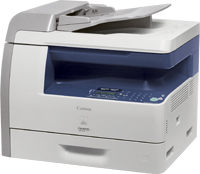
Canon i-SENSYS MF4410 Driver

Canon i-SENSYS MF4410 Printer Driver Download for Linux 32bit-64bit

  • UFR II/UFRII LT Printer Driver
Canon i-SENSYS MF4410 Printer

Canon i-SENSYS MF4410 Driver for Linux

Operating Systems: Linux 64bit – Linux 32bit- Linux ARM- Linux MIPS

Driver NameVersionRelease dateFile SizeDownload Link
UFR II/UFRII LT Printer DriverV6.0011 September 202464.0 MBDownload
Canon i-SENSYS MF4410 Printer Description for Linux

This printer driver provides printing functions for UFRII-enabled Canon printers operating under the CUPS (Common UNIX Printing System) environment, a printing system that operates on Linux operating systems. To use this software, please read the online manual before installing the driver.

Canon i-SENSYS MF4410 Driver for Windows

Compatible Systems: Windows 11, Windows 10 (64bit), Windows 8.1 (64bit), Windows 8 (64bit), Windows 7 (64bit)

Driver NameVersionRelease dateDownload Link
i-SENSYS MF4450/MF4430/MF4410 MFDrivers (UFR II / FAX / ScanGear)V20.3127 November, 2015Download
Canon i-SENSYS MF4410 Driver Description

Canon MF4400 Driver

Canon i-SENSYS MF4400 Series Printer Driver for Windows 10-8.1-8-7(32-bit)(64-bit)

i-SENSYS MF4450/MF4430/MF4410 MFDrivers (UFR II / FAX / ScanGear)

Printer Canon i-SENSYS MF4400

Canon i-SENSYS MF4400 Printer Driver for Windows

Compatible Systems: Windows 11, Windows 10 (64bit), Windows 8.1 (64bit), Windows 8 (64bit), Windows 7 (64bit)

Driver NameVersionRelease dateOperating systemsDownload Link
i-SENSYS MF4450/MF4430/MF4410 MFDrivers (UFR II / FAX / ScanGear)V20.3127 Nov, 2015Windows10x64 – Windows 8.1×64 – Windows 8×64 – Windows 7×64Download
i-SENSYS MF4450/MF4430/MF4410 MFDrivers (UFR II / FAX / ScanGear)V20.3127 November, 2015Windows 10 (32bit)-8.1 (32bit)-8 (32bit)-7 (32bit)Download
i-SENSYS MF4400 Driver Setup

Driver Version : UFR II Printer Driver – V20.31, Fax Driver – V8.31 (MF4450), ScanGear – V11.3

*Precaution When Using a USB Connection
Disconnect the USB cable that connects the device and computer before installing the driver.
Connect the USB cable after installing the driver.

Drivers and applications are compressed.
Click on the file link, and then click [Accept & Download].

* When clicking [Run] on the file download screen (file is not saved to disk)
1. If the User Account Control prompt is displayed, click [Yes], and then click [Run] on the subsequent Security Alert screen.
2. The Setup Wizard will start.
3. After the Setup Wizard has started, follow the instructions on the screen to perform installation.

* When clicking [Save] on the file download screen (file is saved to disk at specified location)
1. Save the file to an apporopriate location, and then double-click the file (double-clicking the file will create a new folder in the same location).
2. If the User Account Control prompt is displayed, click [Yes].
3. The Setup Wizard will start.
4. After the Setup Wizard has started, follow the instructions on the screen to perform installation.

MF217w Scan Driver

Canon i-SENSYS MF217w Printer Driver Download for Windows 11-10-8.1-8-7 (32bit-64bit)

i-SENSYS MF217w/MF216n/MF212w MFDrivers (UFR II / FAX / ScanGear)-UFR II/UFRII LT V4 Printer Driver

Canon i-SENSYS MF217w MFP

Canon i-SENSYS MF217w Scan Driver Download for Windows

i-SENSYS MF217w/MF216n/MF212w MFDrivers (UFR II / FAX / ScanGear)

Version: V4.50
File name: MF210MFDriverV450WPEN.exe
Release date: 26 Nov, 2021
Size: 118.99 MB
Operating systems: Windows 11-Windows 10 (64-bit)-Windows 8.1 (64-bit)-Windows 8 (64-bit)-Windows 7 (64-bit)

Download

Driver Version : UFR II Printer Driver – V21.20, Fax Driver – V10.10 (MF217w/MF216n), ScanGear – V11.3

*Precaution When Using a USB Connection
Disconnect the USB cable that connects the device and computer before installing the driver.
Connect the USB cable after installing the driver.

Drivers and applications are compressed.
Download the file.

  • When clicking [Run] on the file download screen (file is not saved to disk)
  1. If the User Account Control prompt is displayed, click [Yes], and then click [Run] on the subsequent Security Alert screen.
  2. The Setup Wizard will start.
  3. After the Setup Wizard has started, follow the instructions on the screen to perform installation.
  • When clicking [Save] on the file download screen (file is saved to disk at specified location)
  1. Save the file to an apporopriate location, and then double-click the file (double-clicking the file will create a new folder in the same location).
  2. If the User Account Control prompt is displayed, click [Yes].
  3. The Setup Wizard will start.
  4. After the Setup Wizard has started, follow the instructions on the screen to perform installation.
Exit mobile version