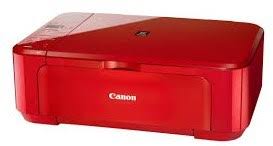
Download Canon PIXMA TS3170S All-in-One Inkjet Colour Printer Driver for Windows 11/10/8.1/7 32-64Bit and Driver for Linux (32-64bit)
-TS3100 series Full Driver and Software Package for Microsoft Windows -IJ Printer Driver for Linux
Printer Canon PIXMA TS3170S
It can easily do your printing, scanning and copying operations. ISO Standard A4 print speed: Up to 7.7 ipm and 7.7 ipm for color prints.
Canon PIXMA TS3170S Printer Driver for Windows
Compatibility Systems: Windows 11, Windows 10 (32bit), 10 (64bit), Windows 8.1 (32bit), 8.1 (64bit), Windows 8 (32bit), 8 (64bit), Windows 7 (32bit), 7 (64bit)
Canon PIXMA TS3170s Driver Description for Windows
TS3100 series Full Driver & Software Package: This file will download and install the drivers, application or manual you need to set up the full functionality of your product.
Download / Installation Procedures IMPORTANT: Be sure to connect your PC to the Internet while performing the following:
Download the file. For the location where the file is saved, check the computer settings.
Double-click the downloaded .exe file. It will be decompressed and the Setup screen will be displayed. Follow the instructions to install the software and perform the necessary settings.
TS3100 series MP Drivers: This driver will provide full printing and scanning functionality for your product.
TS3100 series XPS Printer Driver: This is an optional printer driver allowing 16-bits per colour (bpc) printing. Download / Installation Procedures
Download the file. For the location where the file is saved, check the computer settings.
Double-click the downloaded EXE file to decompress it, then installation will start automatically.
IJ Printer Driver: This software is a printer driver for printing using the Canon IJ printer. Install the downloaded package archive file as an Administrator following the manual.
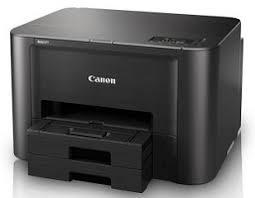
Download Canon Maxify iB4080 Printer Driver for Windows 11/10/8.1/8/7/Vista/XP (32bit-64bit)
IB4000 series Printer Driver and iB4000 series Full Driver and Software Package for Microsoft Windows
Printer Canon Maxify iB4080
Canon Maxify iB4080 Driver for Windows
Ver. 1.00 File name: p86l-win-ib4000-1_00-ea33_3.exe Relased: 15 Oct, 2021 Compatible Systems: Windows 11, Windows 10 (32-bit), Windows 10 (64-bit), Windows 8.1(32-bit), Windows 8.1(64-bit), Windows 8(32-bit), Windows 8(64-bit), Windows 7(32-bit), Windows 7(64-bit) Download Size: 15MB
Canon Maxify iB4080 Full Driver for Windows
Name : win-ib4000-1_1-mcd.exe Post Date: 3 November, 2016 Operating Systems: Windows 10, Windows 10 (64-bit), Windows 8.1, Windows 8.1(64-bit), Windows 8, Windows 8(64-bit), Windows 7, Windows 7(64-bit), Vista, Vista (64-bit), XP Download Size : 52.2MB
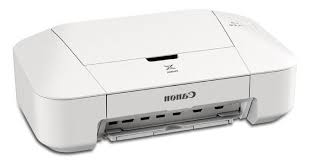
Download Canon PIXMA IP2890 Printers Driver and Software for (Windows 10/10 x64/8.1/8.1 x64/8/8 x64/7/7 x64/Vista/Vista64/XP) and Driver for MAC (OS 12, 11, 10.15, 10.14, 10.13, v10.12.1, v10.11, v10.10, v10.9, v10.8, v10.7, v10.6)
iP2800 series Printer Driver-iP2800 series Full Driver and Software Package-iP2800 series XPS Printer Driver for Microsoft Windows and iP2800 series CUPS Printer Driver-iP2800 series Full Driver & Software Package for MAC
Printer Canon Pixma IP2890
Canon PIXMA IP2890 Printer Driver for Windows
Compatibility Systems: Windows 11, Windows 10 (32bit), 10 (64bit), Windows 8.1 (32bit), 8.1 (64bit), Windows 8 (32bit), 8 (64bit), Windows 7 (32bit), 7 (64bit), Vista (32bit), Vista (64bit),XP, WinXP (64bit)
Driver Name
Version
Release date
File Size
Operating systems
Download Link
iP2800 series Printer Driver
2.75
Oct 15, 2021
12.51 MB
Windows 11 – Windows10-10×64 – Windows 8.1-8.1×64 – Windows 8-8×64 – Windows 7-7×64 – Vista- Vistax64-XP
iP2800 series Printer Driver: This file is a driver for Canon IJ printers.
Download / Installation Procedures
Click the link, select [ Save ], specify “Save As”, then click [ Save ] to download the file. Memo : If you select [ Run ] ( or [ Open ] ) instead of [ Save ], the file will be automatically installed after it is saved.
The downloaded file will be saved in the specified place in the self-extracting form ( .exe format ).
Double-click the downloaded EXE file to decompress it, then installation will start automatically.
Uninstall Procedures If needed, you can uninstall this program using the Control Panel.
-The steps below are for Windows 7. This procedure may be different for other OSes.
On the Start menu, click Control Panel, and then, under Programs click Uninstall a Program
A page will open with a list of installed programs. Double click on the program that you want to uninstall.
Click “Yes” then “OK”, this will complete the uninstallation process.
iP2800 series Full Driver & Software Package: This is an online installation software to help you to perform initial setup of your printer on a PC (either USB connection or network connection) and to install various software.
iP2800 series XPS Printer Driver: This file is a printer driver for Canon IJ printers. XPS printer drivers support 16-bpc printing, which enables more smooth gradation printing than the current drivers (8-bpc printing).
Download / Installation Procedures
Click the link, select [ Save ], specify “Save As”, then click [ Save ] to download the file. Memo : If you select [ Run ] ( or [ Open ] ) instead of [ Save ], the file will be automatically installed after it is saved.
The downloaded file will be saved in the specified place in the self-extracting form ( .exe format ).
Double-click the downloaded EXE file to decompress it, then installation will start automatically.
Canon PIXMA IP2890 Printer Driver for MAC
Operating Systems: macOS Monterey 12, macOS Big Sur 11, macOS Catalina 10.15, macOS Mojave 10.14, macOS High Sierra 10.13, macOS Sierra v10.12.1 or later, OS X El Capitan v10.11, OS X Yosemite v10.10, OS X Mavericks v10.9, OS X Mountain Lion v10.8, OS X Lion v10.7
iP2800 series CUPS Printer Driver: This is a printer driver for your selected model. For an enhanced user experience we also recommend installing My Image Garden software.
iP2800 series Full Driver & Software Package: This file will download and install the drivers, application or manual you need to set up the full functionality of your product.
Download / Installation Procedures
Download the file. For the location where the file is saved, check the computer settings.
Double-click the downloaded file and mount it on the Disk Image.
Double-click the mounted Disk Image.
Double-click the Setup file in the folder. The Setup screen will be displayed. Follow the instructions to install the software and perform the necessary settings.